Blog · HomeLab · The server · 5 min read
Homelab, part 1: the server, its storage, and its power
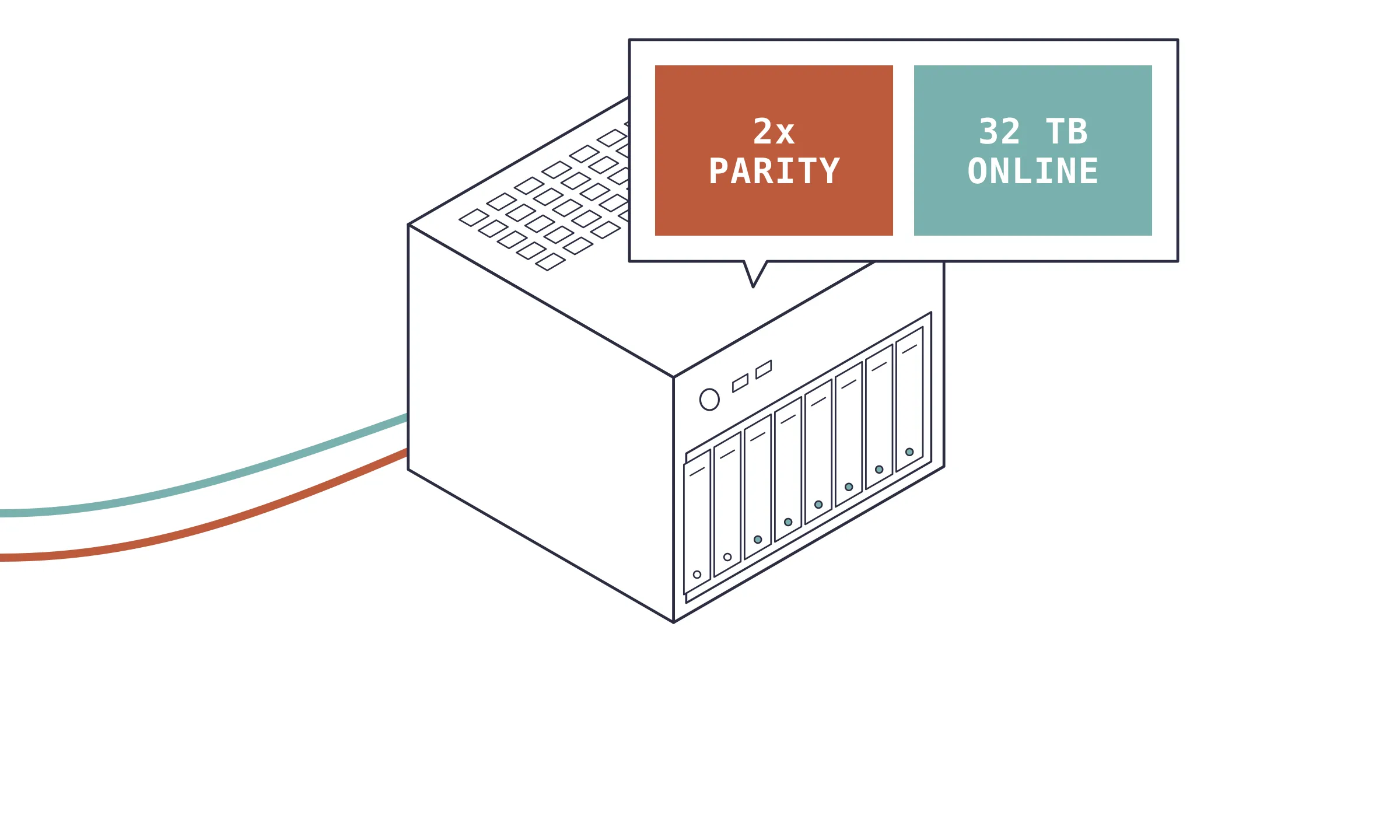
A Ryzen mini-ITX server in a Jonsbo N3 with 32 TB of dual-parity storage, an NVMe cache, and a UPS behind it.
Contents
Most of my working day is spent moving data between systems that were never designed to talk to each other. My homelab is the version of that problem I get to design myself: a single server that stores our photos, documents and media, records the cameras, and hosts whatever I am experimenting with that week.
This is part 1 of a two-part tour, covering the hardware, the storage layout, and the power setup. Part 2 covers the apps that run on top.
In short
One small mini-ITX box running Unraid: a Ryzen 5 5600G, 64 GiB of RAM, six 8 TB hard drives with two of them as parity, and a 1 TB NVMe cache. It idles at a few watts of CPU power, runs 24 Docker containers, and sits behind a UPS with more than two hours of runtime.
- usable array, dual parity
- 32 TB
- Docker containers running
- 24
- DDR4 memory
- 64 GiB
- load on the UPS
- ~72 W
Why Unraid
I wanted one box that could grow a disk at a time, survive a drive failure calmly, and run containers without a separate hypervisor to maintain. Unraid fits that well.
Its array is not a traditional RAID. Each data disk keeps its own ordinary filesystem, and one or two parity disks hold enough extra information to rebuild any failed disk. That has a few practical consequences:
- Drives can be different models and sizes, as long as no data disk is larger than the parity disks.
- Adding capacity means adding one disk, not rebuilding a whole pool.
- If more drives fail than parity can cover, the surviving disks are still readable on their own.
The trade-off is speed. A file lives on a single disk, so reads run at single-drive speed, and every write also updates parity. For a home media and file server that is rarely the bottleneck, and the NVMe cache covers most of the gap.
Hardware
| Part | What I use |
|---|---|
| Case | Jonsbo N3 |
| CPU | AMD Ryzen 5 5600G (6 cores, 12 threads, integrated Radeon graphics) |
| Motherboard | ASRock B550M-ITX/ac |
| Memory | 64 GiB DDR4 (board supports up to 128 GiB) |
| Cache | Samsung 970 EVO Plus 1 TB NVMe (btrfs) |
| Array | 6 × 8 TB hard drives: 2 parity, 4 data |
| Boot | Samsung FIT 64 GB USB flash drive |
| Network | Gigabit Ethernet, configured as an active-backup bond |
| Power | CyberPower CP1500AVRLCD3 UPS (900 W) |
The case
The Jonsbo N3 is a compact NAS case with eight front-loading hot-swap 3.5-inch bays, a mini-ITX board, and an SFX power supply. Six of the bays hold the array, which leaves two free for the next capacity upgrade. It is about the size of an off-the-shelf four- or five-bay NAS, and much smaller than a tower with the same drive count. The usual trade-offs of a case this size apply: little room for large coolers or add-in cards, and a build that takes some patience with cable routing.
CPU and memory
The Ryzen 5 5600G is a common pick for this kind of build. Six cores and twelve threads are plenty for two dozen containers, and the integrated Radeon graphics mean no discrete GPU is needed just to get a display for setup. The integrated GPU can also be passed to containers for hardware video decoding and encoding.
Low idle power matters more than peak performance on a machine that is on all day. On this server the CPU draws about 7 to 14 W at near-zero load and sits in the mid-40s °C.
Memory use is around 37% of 64 GiB. Unused RAM is not wasted on a server: Linux uses it to cache recently read files, and it leaves headroom for databases and for trying new services.
Storage
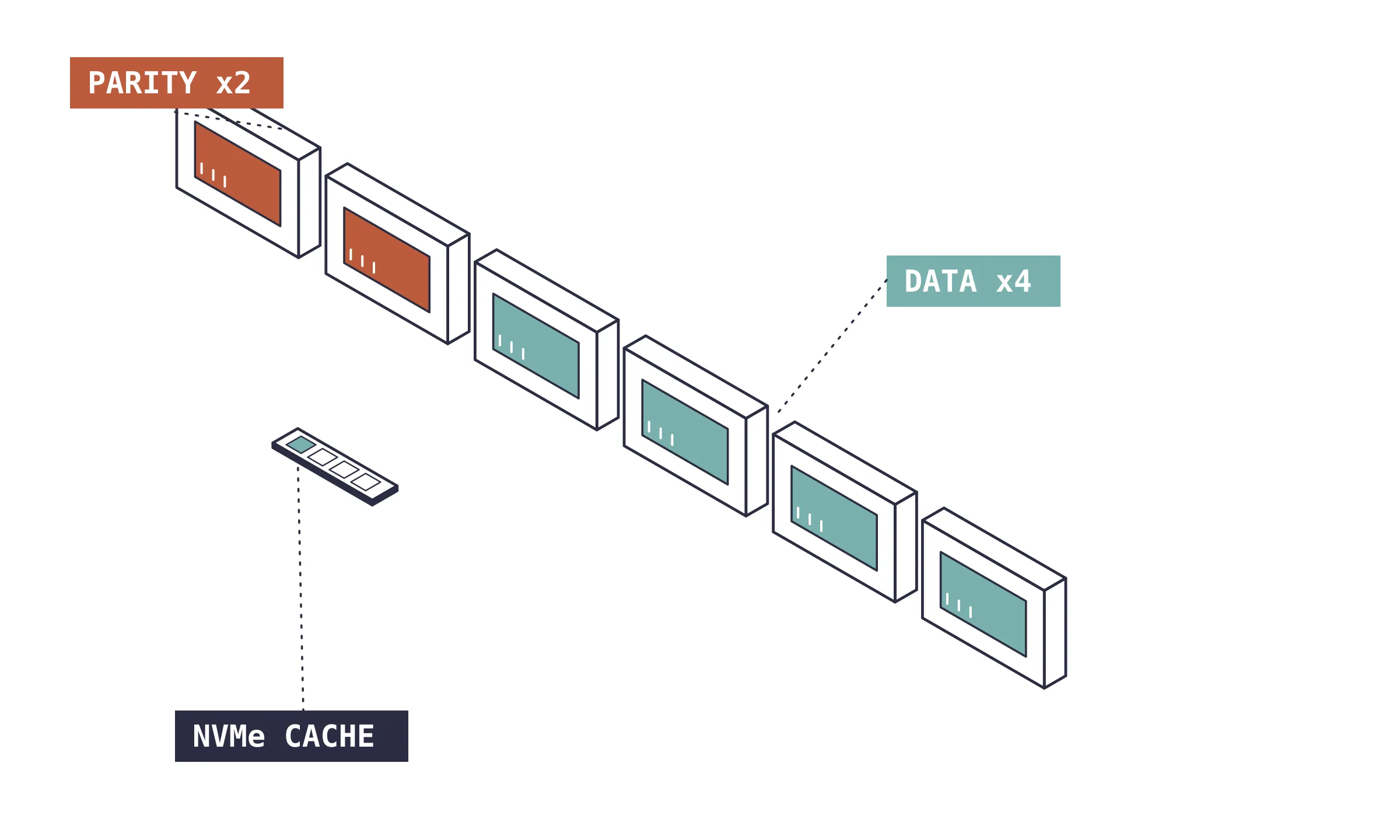
The array has six 8 TB drives: two parity disks and four data disks, for 32 TB of usable space, of which about 8.3 TB is in use.
| Role | Drives |
|---|---|
| Parity | Seagate ST8000DM004, WD Red Plus WD80EFPX |
| Data | Seagate ST8000DM004 ×2, WD Red Plus WD80EFPX, WD Red Plus WD80EFZZ |
| Cache pool | Samsung 970 EVO Plus 1 TB NVMe |
Why dual parity
With single parity, the array survives one failed drive. The risk window is the rebuild: replacing an 8 TB drive means reading every other disk end to end for many hours, and a second failure during that time would lose data. Dual parity covers that case, at the cost of one more drive’s worth of capacity.
Mixing SMR and CMR drives
The drives are not all the same kind. The Seagate ST8000DM004 is a BarraCuda, a desktop drive that uses SMR (shingled magnetic recording), where tracks overlap to increase density. SMR drives read normally but can slow down sharply during long, sustained writes. The WD Red Plus drives are NAS-rated and use CMR (conventional magnetic recording), which keeps write speed steady.
In a striped RAID, a slow drive can hold back the whole pool. Unraid’s array is more forgiving: each file sits whole on one data disk instead of being striped across all of them, and a write touches only that disk and the two parity disks, so mixed drive types work fine together. Routing new writes through the cache also helps, since the array then mostly sees large, scheduled transfers.
The NVMe cache
The NVMe drive does the fast work. Appdata (each container’s configuration and databases) and the Docker image live on it, so apps stay fast and everyday app activity doesn’t keep the hard drives busy. New files written to cached shares land on the SSD first, and Unraid’s mover, a scheduled job, later moves them to the array.
Keeping an eye on it
A full parity check runs monthly. It reads every disk end to end and confirms that the parity still matches the data. The last one took 19 hours and 32 minutes at an average of 113.8 MB/s and found zero errors. Drive temperatures sit between 35 and 41 °C, and every disk reports healthy SMART (the drive’s built-in self-monitoring) data.
RAID is not a backup
Parity protects against a drive dying, not against deleting the wrong folder, ransomware, or the house flooding. The things I can’t replace (photos and documents) are what any backup plan has to cover first, ideally following the 3-2-1 rule: three copies, on two kinds of media, one of them offsite.
Power
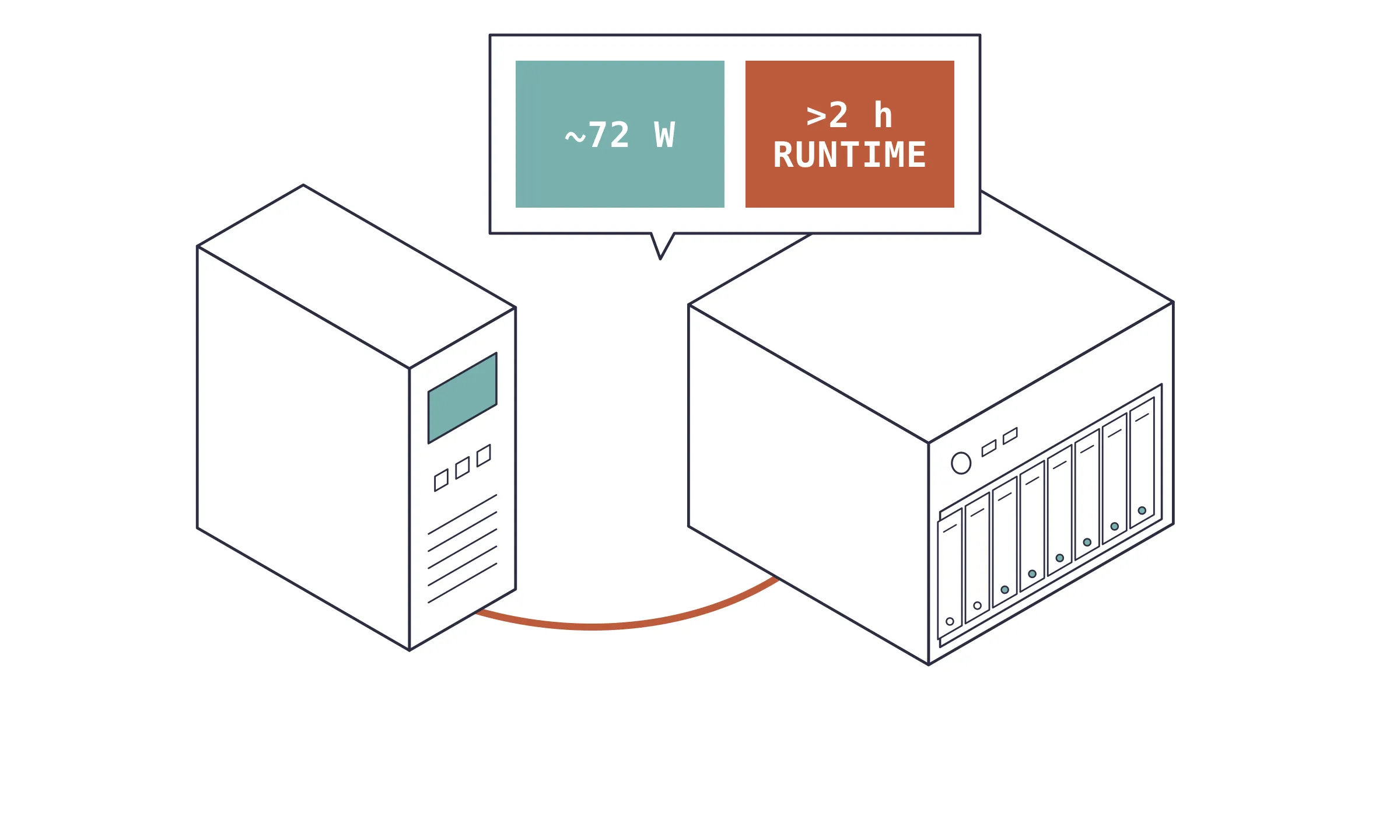
The server sits behind a CyberPower CP1500AVRLCD3, connected over USB so Unraid can read the UPS status directly. With everything running, the load is about 72 W, 8% of the UPS’s 900 W rating, which gives over two hours of runtime on battery.
A UPS on a parity array does more than ride out short outages. Losing power in the middle of a write can leave parity out of sync, which usually means a long parity check on the next boot. With the UPS reporting over USB, Unraid can shut down cleanly when the battery runs low. The AVR (automatic voltage regulation) in this model also smooths out brownouts without switching to battery.
Next
That covers the box itself. Part 2 goes through what runs on it: photos, media, cameras, documents and notes across 24 containers, and how I reach them away from home.